Mac MagSafe 3 flashing amber: what to check before reconnecting
Steady amber can mean charging or charging on hold. For repeated MagSafe 3 flashing, disconnect, clean with a dry cloth, restart and reconnect. The next check depends on whether another cable can charge the Mac.
- These are external checks for MagSafe 3, not electrical repair instructions.
- Damage, discoloration or sparks away from the plug blades call for Apple support before repeated reconnection.
Steady amber or repeated flashing?
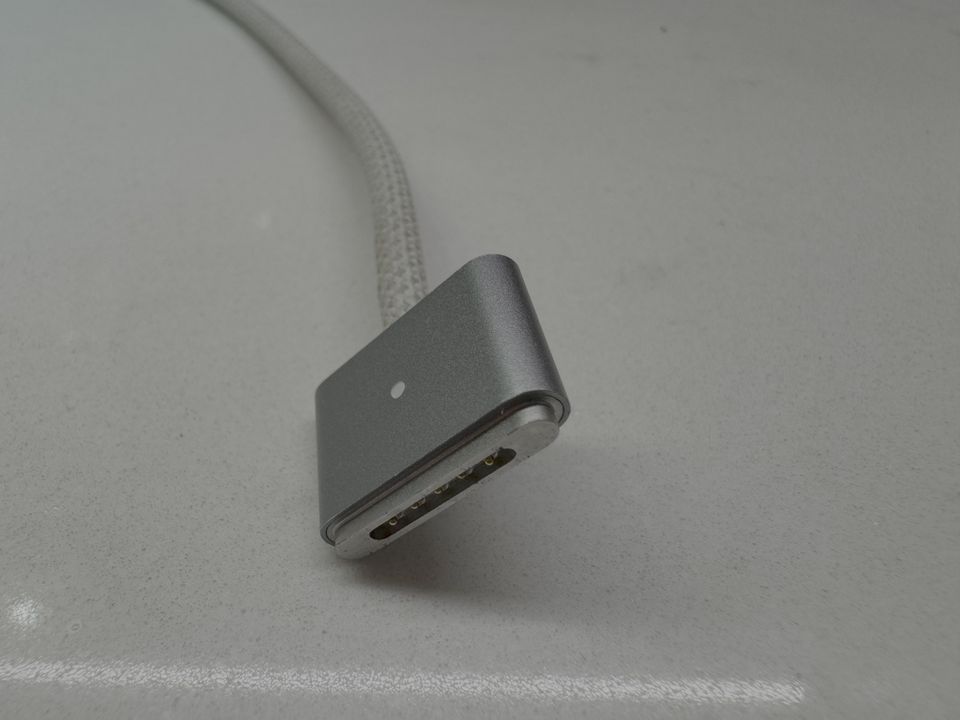

An amber light does not by itself mean the cable is faulty. Apple says the MagSafe light is amber while charging or while charging is on hold, and green when the battery is fully charged.
| What you see | What to check |
|---|---|
| Steady amber | Charging, or charging on hold in the battery menu |
| MagSafe 3 repeatedly flashes amber | Follow the external connection checks below |
| Steady green | Indicates a fully charged battery |
If the light stays amber and the menu says charging is on hold, distinguish this from repeated flashing. Optimized Battery Charging or a charge limit may explain the pause. Read the menu before ordering a replacement cable.
Disconnect, clean, restart and reconnect

Repeated flashing can indicate a charging issue. The following is Apple's external check sequence for MagSafe 3. If there is damage, discoloration or sparking anywhere other than the plug blades, contact Apple before reconnecting repeatedly.
- Disconnect the USB-C to MagSafe 3 cable from both the Mac and the power adapter.
- Unplug the USB-C power adapter from the wall outlet.
- Wipe the MagSafe 3 port and connector with a dry cloth. Check for moisture and debris.
- Check the adapter's USB-C port and the cable's USB-C connector for debris too.
- Restart the Mac.
- Reconnect the adapter to the outlet and the cable to the adapter and Mac, then check charging.
Do not put liquid into the ports to wash them. MagSafe 2 and earlier connectors have different designs and connection conditions; this is not a reset procedure for those adapters.
What charging with another cable tells you
If flashing continues, Apple suggests trying another MagSafe 3 cable or a USB-C charging cable. If another method charges normally but the original cable keeps flashing, Apple's guidance also mentions possible software incompatibility. That result alone does not establish physical battery or cable failure. Check for available Mac updates; software or firmware updates may improve communication with the power adapter.
If you can borrow a known working cable, note what changed the result: for example, “charges over the other USB-C connection; original MagSafe 3 still flashes.” Changing one connection at a time is an editorial suggestion to make the comparison clearer.
If no connection charges the Mac, check the outlet and power supply as well. A USB-C charging test needs a charging-capable cable and a power source suitable for that Mac.
Check the power supply before buying a cable
Use a known working device such as a lamp to check the wall outlet. Read the adapter's wattage on its label. To see what the Mac reports for the connected supply, hold Option, open System Information from the Apple menu, then look under Power for AC Charger Information.
Apple permits a USB PD power adapter or a display supplying USB-C power, and recommends at least the model's recommended minimum wattage for the best charging experience. A low-power adapter and repeated MagSafe 3 flashing are not automatically the same problem. Compare your model with Apple's power adapter table.
Connecting MagSafe and USB-C power at the same time does not add their charging speeds. The Mac charges through one port at a time, using the source that supplies the most power.
When to stop and contact Apple
Stop repeated reconnection and contact Apple if the adapter is damaged or discolored, or sparks occur away from the plug blades. An adapter can become warm in normal use; keep it ventilated and off bedding or thick carpeting.
If external checks do not restore operation, take the Mac and adapter together to an Apple Store or Apple Authorized Service Provider. Explain the light pattern, battery-menu message and results with another connection so the checks you have already made are clear.
Sources & updates
- Official information Apple — Check a MagSafe cable and power adapter ↗
External checks for repeated amber flashing, and when to contact Apple.
- Official information Apple — Mac charging lights and power sources ↗
Steady amber and green, charging on hold and selection between connected power sources.
- Official information Apple — Identify a Mac power adapter and wattage ↗
Model-specific adapters, recommended power and where to read wattage on the Mac.
Information checked